


Authenticator App - SafeAuth
4.41.99K Reviews
App Specs
- Version
- 1.7.6
- Updated On
- License
- Free
- Downloads
- 10,000,000+
- Developer
- SafeAuth Services.
- Categories
- Tools
- Platform
- Android, iOS
Screenshots
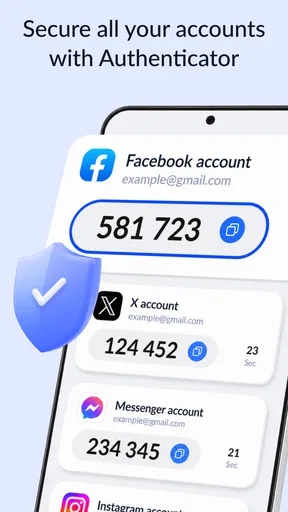
 Analysis by AppCompare
I find authenticator apps most useful when they quietly fit into the routine of signing in, rather than making every login feel like a technical project. SafeAuth is a tools app from SafeAuth Services built around that simple job: it holds account codes behind PIN and biometric protection. Its 4.4 average from around 140,000 ratings and more than 10 million installs suggest it has found a broad audience, though popularity alone cannot tell you whether its approach suits your own backup habits.
Where setup tends to get stuck
The part people often underestimate is not installing an authenticator; it is making sure the account and the app are paired correctly before relying on them. A QR code or secret key comes from the service you are protecting, not from SafeAuth itself. I would start with one low-stakes account, follow that service’s own security settings, and test a fresh sign-in while I still have access to the setup screen. That small check can catch a mistyped key or an incomplete enrollment before the authenticator becomes the only route back in.
There is also a practical distinction between protecting the app and protecting the accounts inside it. A PIN or biometric lock can help keep someone who has your unlocked phone from casually opening the code list, but it does not replace the recovery methods offered by each website. Before enabling 2FA, I’d save the service’s recovery codes somewhere separate and secure. If a site offers more than one recovery route, setting those up at the same time is less stressful than trying to do it after losing a phone.
Checks that make the first login smoother
SafeAuth is free to download, with optional in-app purchases listed from $4.99 to $99.99 per item. I would treat the basic install as a place to begin, then read any purchase screen carefully before choosing anything; the presence of paid items does not mean you need to buy something just to decide whether an authenticator workflow works for you. It is rated for Everyone, runs on Android 6.0 and newer, and its current version is 1.6.8. Those details are useful when checking an older device, but I’d still make sure the app installs and opens normally before moving important accounts into it.
When adding an account, I’d keep the service’s enrollment page open until the code generated in SafeAuth has been accepted by that service. Then I’d sign out and try a normal login, rather than assuming that seeing a code in the app proves setup is complete. This is especially worthwhile for an email account, because losing access to email can make resetting other accounts harder. If you are setting up several services, doing them one at a time also makes it easier to identify which pairing needs attention.
Using codes in an ordinary day
A realistic example is signing in to a work account from a new browser while you are away from your usual desk. You enter your password, open SafeAuth, find the matching account label, and use the current code. The app’s offline code generation is handy here: a weak connection does not, by itself, prevent it from producing a code. That does not mean the website’s login page can work offline, but it removes one possible dependency from the second step.
Labels, categories, and search become more valuable as the account list grows. I’d use names that distinguish similar entries, such as a personal account from a work one, rather than relying on a service logo or an abbreviated label. Search can save time, but clear naming is the better first line of organization when you are in a hurry. This is a modest habit, yet it reduces the chance of copying a code from the wrong account during a rushed sign-in.
Worth Reading Before You Choose

EA SPORTS FC Mobile 26 Is a Bigger Football Game, but It Takes Time

Flipboard Shows What News Apps Must Do Beyond the Feed

Switching to Android Auto Means Rethinking Your Driving Routine

Google Calendar Makes a Crowded Week Easier to Manage

Ludo King Makes the Most of the Minutes Between Plans

Baby Panda World Brings Quick Play to Modern Phones, but Its Game Library Feels Busy
The trade-off is that an authenticator creates a small extra step every time a service requests a second factor. That friction is the point: a stolen password alone should not be enough to complete a protected login. For accounts you rarely use, the extra step may feel unnecessary until you need access from a different device. I find the balance easiest to accept when I prioritize email, financial, work, and other accounts whose compromise would cause real disruption, while keeping recovery options in order for each one.
Setting Up SafeAuth: A Breeze!
First things first, setting up the Authenticator App - SafeAuth is as easy as pie. Once you download it from the App Store or Google Play, you're greeted with a clean, intuitive interface. The app holds your hand through the setup process, which is super handy if you're not the most tech-savvy person out there.
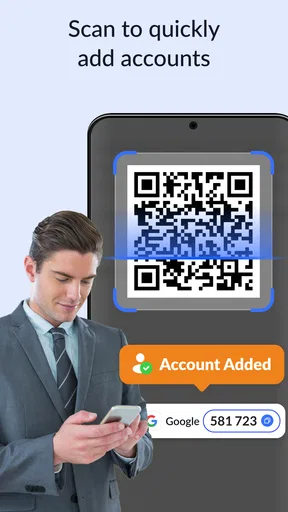
After a quick tutorial, you'll be prompted to add your accounts. This is done by scanning a QR code from the site you're securing, or by manually entering the secret key. In just a few taps, you're ready to roll. The seamless integration with popular platforms like Google, Facebook, and Dropbox makes it a breeze to enhance your security.
Features that Stand Out
One of the standout features of SafeAuth is its offline functionality. Unlike some other apps, it doesn’t rely on an internet connection to generate codes. This means you can access your 2FA codes anytime, anywhere, which is a lifesaver when traveling or in areas with spotty internet.
Another nifty feature is the app's ability to organize your accounts. You can label and categorize each account, making it super easy to find the code you need when you need it. There's even a search function if you're like me and have way too many accounts to keep track of.
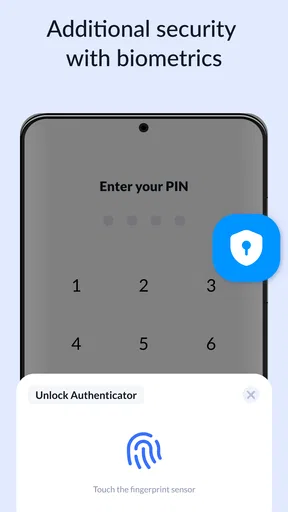
The app also boasts biometric security. This means you can use your fingerprint or face ID to unlock it, adding an extra layer of protection. It’s a small feature, but it makes a big difference in peace of mind.
User Experience: Smooth Sailing
Using SafeAuth day-to-day is a delight. The app is responsive and quick, generating codes in seconds. The user interface is sleek and straightforward, which I really appreciate. There's no clutter or unnecessary features to wade through, just what you need, right at your fingertips.
The developers have clearly put a lot of thought into making SafeAuth user-friendly. Even if you’re a complete newbie to 2FA, the app’s simplicity makes it accessible. Plus, their customer support is top-notch, ready to help if you ever run into a snag.
Security First, Always
The primary goal of any authenticator app is to enhance security, and SafeAuth delivers. The app uses industry-standard encryption to protect your data. This means that even if someone gets their hands on your phone, your 2FA codes are safe and sound.
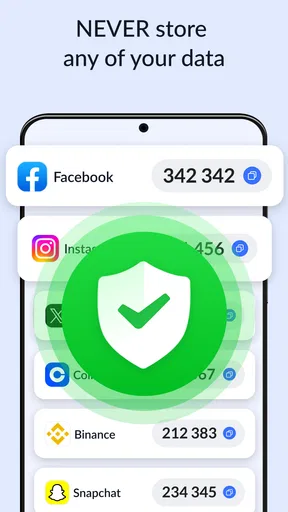
Moreover, SafeAuth doesn’t store your information on their servers. Everything is kept locally on your device, reducing the risk of data breaches. It's clear that the developers have prioritized privacy and security at every turn.
When the app may not be the cause
If a code is rejected, I would not immediately assume SafeAuth is broken. First, I’d check that I selected the right account, that the service accepted the original enrollment, and that the phone’s displayed time is set automatically. Time-based codes depend on timing, so a device clock that has drifted can cause trouble even when the code list looks normal. I’d also wait for the next code to appear and enter it promptly, taking care not to include spaces or characters copied from elsewhere.
If a sign-in still fails, I’d use the service’s recovery route rather than repeatedly guessing codes or deleting the entry. Removing an authenticator entry can make recovery harder if it is the only working copy. If the service allows it, I’d regain access through its official account recovery process, then enroll the authenticator again and test the result before closing the session. For an app that will contain several important accounts, I’d keep recovery information outside the phone so a damaged, lost, or replaced device does not become a single point of failure.
How it compares with other ways to get a second factor
Compared with receiving a login code by text, an authenticator can be more convenient when cellular reception is poor, because SafeAuth can generate codes offline. Text messages may still be easier for someone who wants fewer apps or who is setting up a service that only offers that method. For accounts that support security keys or passkeys, those may be a better fit for people who want a different sign-in routine and are comfortable managing the associated device or credentials. I would choose based on the recovery options and login methods each service actually supports, not on the assumption that one method suits every account.
SafeAuth’s focus is a straightforward code-based workflow, which is appealing if you want a dedicated place to find codes without turning account security into a larger management project. The counterpoint is that an authenticator on one phone needs a recovery plan. Before depending on it across many accounts, I’d check how each service lets me replace a lost authenticator and keep its backup codes safely accessible. Someone who wants synchronization across devices or a broader password-management setup should compare those needs carefully before committing to any single-app workflow.
Who I’d recommend it to
I’d recommend SafeAuth to someone who wants a simple code generator, values offline access to codes, and is willing to spend a few minutes organizing account labels and recovery details. It is also a reasonable starting point if you are new to 2FA: begin with one important account, learn the sign-in flow, and add others once you are comfortable. The fact that it is free to download makes that first test approachable, while its optional purchases are a reason to review prompts rather than tap through them automatically.
I would hesitate to make it the only security plan for a person who frequently changes phones but does not keep recovery codes, or for someone who needs a coordinated system across several devices and expects it to handle everything automatically. Likewise, if a service offers a security key or passkey that better matches your needs, SafeAuth is not a reason to ignore that alternative. An authenticator is one useful layer, not a substitute for unique passwords, account recovery planning, and attention to suspicious sign-in requests.
Final Thoughts: A Must-Have for Digital Security
In a world where digital threats are ever-present, having a reliable tool like the Authenticator App - SafeAuth is essential. Its ease of use, robust features, and strong security measures make it a standout choice for anyone looking to protect their online accounts.
Whether you're a tech enthusiast or just someone who wants to keep their accounts safe, SafeAuth has got you covered. It’s an app that truly lives up to its promise, and I wholeheartedly recommend giving it a try. Your digital life will thank you!
My practical verdict
My recommendation comes with one condition: treat setup and recovery as a pair. SafeAuth can make the daily second step feel uncomplicated, and its offline code generation is a practical advantage when the phone has no connection. But the code itself is only useful if the account was enrolled correctly and you can recover access if the phone disappears. I’d test a sign-in, keep recovery details somewhere separate, and use thoughtful labels before moving a long list of accounts into it.
For someone seeking a focused authenticator with PIN and biometric protection, it is an approachable option from SafeAuth Services. The app has a 4.4 average from around 140,000 ratings, and over 10 million installs; those figures show that many people have tried it, but my deciding factors would still be whether its setup fits your accounts and whether you are comfortable managing recovery yourself. I’d try it for a few services first, then expand only when the workflow feels dependable.
Pros
- Easy setup with clear instructions.
- Supports multiple two-factor methods.
- Secure encryption for data protection.
- Works offline for added convenience.
- Cross-platform compatibility.
Cons
- No cloud backup for accounts.
- Limited customization options.
- Occasional sync delays.
- No biometric login support.
- Ads in the free version.
FAQs for Authenticator App - SafeAuth
What is SafeAuth, and how does it work?
SafeAuth is a secure authentication app designed to enhance the security of your online accounts. It works by generating time-based, one-time passwords (TOTPs) that change every 30 seconds. To use SafeAuth, simply scan a QR code from the service you wish to secure, and the app will generate the necessary codes for two-factor authentication.
Is SafeAuth compatible with all online services?
SafeAuth is compatible with any online service that supports time-based, one-time password (TOTP) protocols. This includes popular platforms like Google, Facebook, and Dropbox. However, it's essential to verify that the service you want to secure supports 2FA integration with third-party apps like SafeAuth before proceeding.
How secure is SafeAuth in protecting my data?
SafeAuth employs robust encryption methods to ensure your data remains secure. The app stores your authentication keys locally on your device, not on the cloud, minimizing the risk of unauthorized access. Additionally, SafeAuth supports biometric and PIN-based protection to add an extra layer of security to your sensitive information.
Can I transfer my SafeAuth data to a new device?
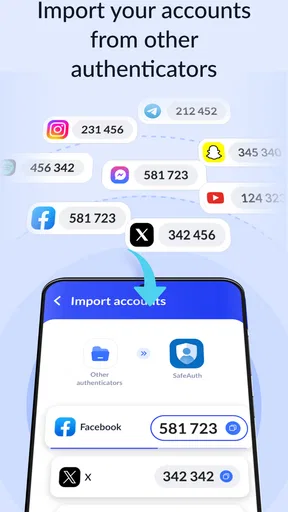
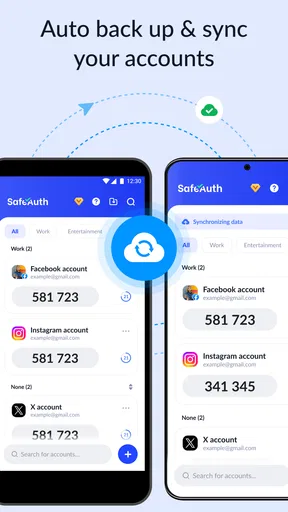
Yes, SafeAuth allows you to transfer your data to a new device. You can use the app's backup and restore feature to create an encrypted backup of your accounts. This backup can then be imported into SafeAuth on your new device, ensuring a smooth transition without losing any authentication codes.
Does SafeAuth require an internet connection to function?
No, SafeAuth does not require an internet connection to generate authentication codes. The app generates codes locally on your device using the TOTP algorithm. However, an internet connection may be needed for initial setup or when backing up and restoring data across devices.


